Models & simulation
Choose simulation models and algorithm packages, then verify motion mapping in the multi-view workspace.
Models & simulation
Models & algorithm packages
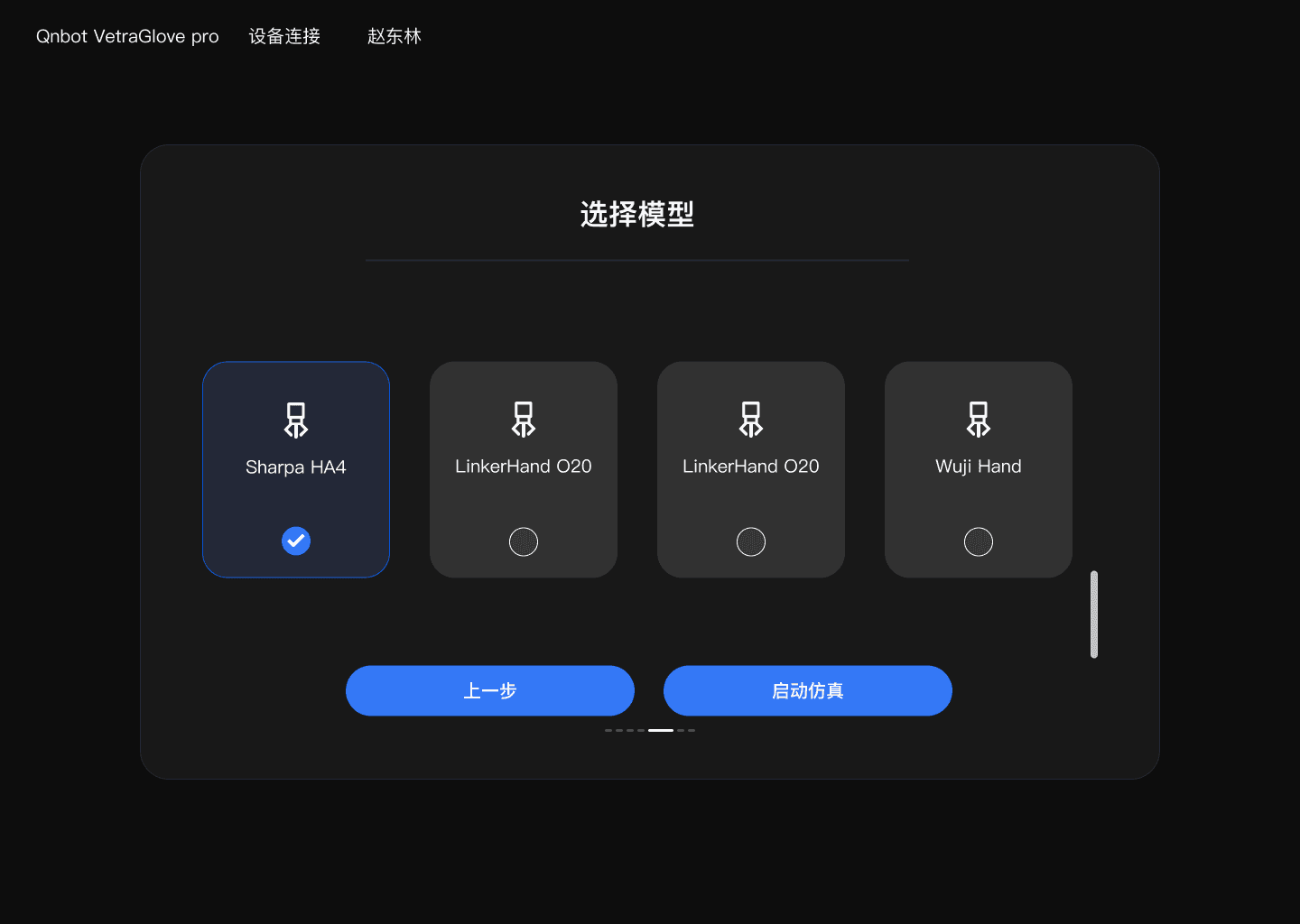
Selecting models
- Open the "Select model" page and review the available model cards. Interface examples include Sharpa HA4, LinkerHand O20, and Wuji Hand.
- Click the selection control at the bottom of a card. A blue highlight or check mark means the model is selected.
- If there are many models, scroll the list to view the remaining cards.
- After confirming that at least one model is selected, click "Start simulation"; to return to the device step, click "Previous".
Model availability: the actual model names, count, and permissions depend on the delivered algorithm package and account authorization. The models shown in this manual's screenshots are for interface illustration only and are not included by default in every version.
Algorithm package updates
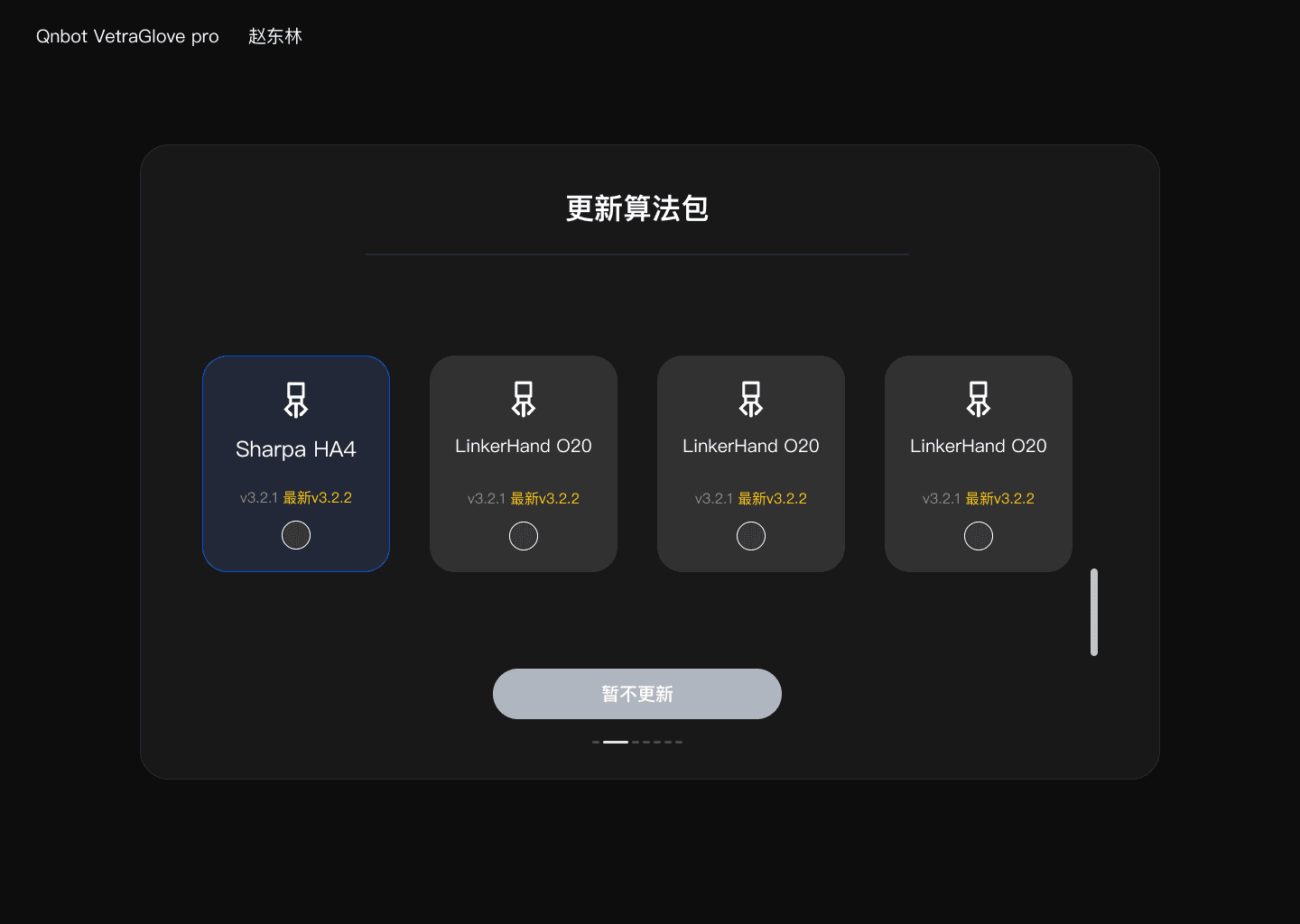
- Cards show the model name, the current version, and any available new version.
- Select the models to update; use the page buttons to download/update a single package, or use "Download all".
- Stop the simulation before updating, keep the network stable, and confirm that there is enough disk space.
- If a model cannot be selected or run, first check whether the corresponding algorithm package has been downloaded and whether the version is compatible.
Developers and offline scenarios: to use the same algorithm package from code (the SDK), install the offline ZIP or directory with Qnbot CLI and configure the SDK with the package_id shown by qnbot algorithm list. The desktop app and the SDK use the same installed algorithm package on this machine; after an update, restart the desktop app or recreate the corresponding SDK instance.
Simulation workspace
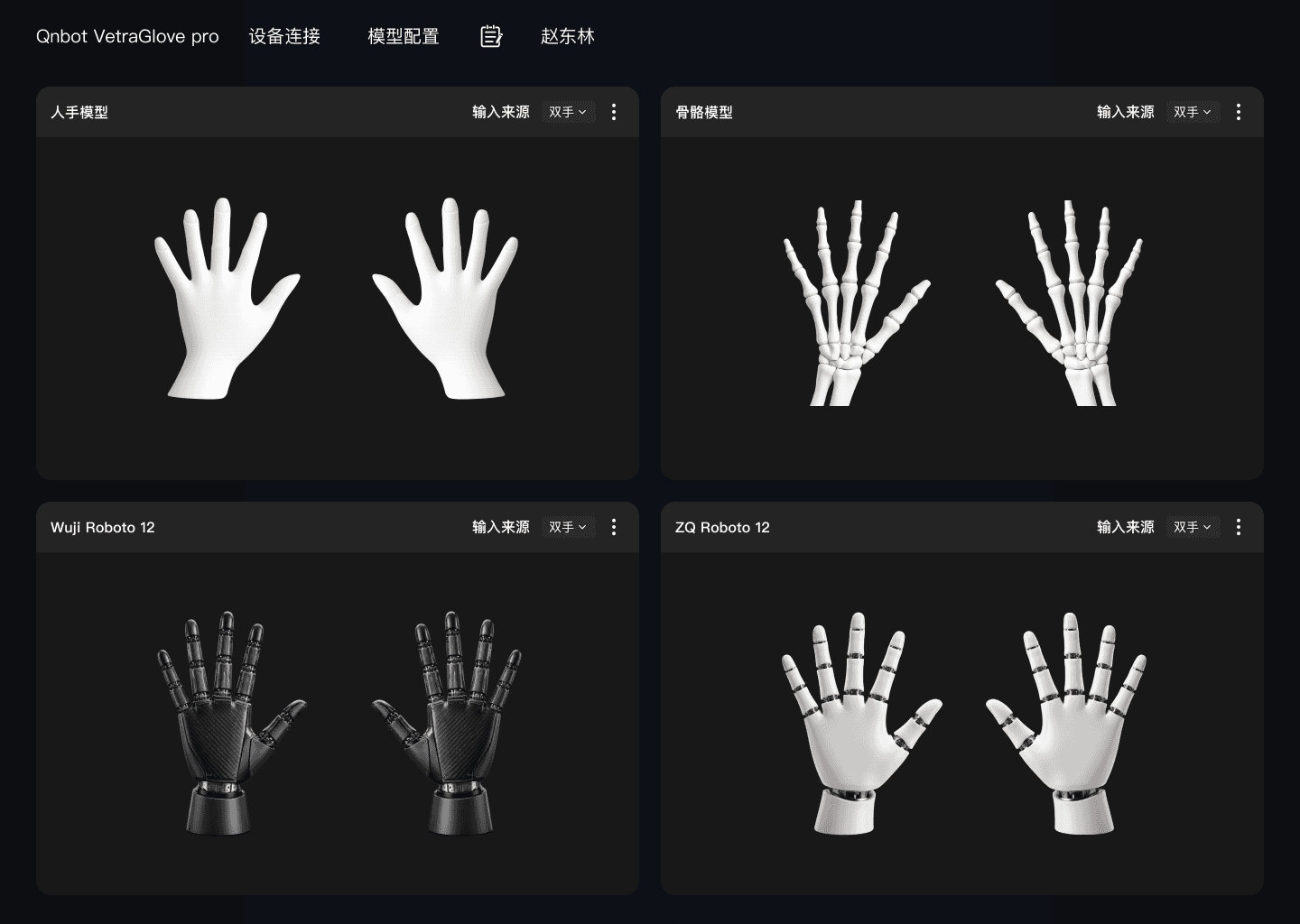
Interface composition
| Area | Description |
|---|---|
| Top navigation | Shows the product name and provides entries for device connection, model configuration, logs/tools, and the account. |
| Model view cards | Show simulation results such as the human-hand model, skeleton model, robotic hand, or trackball. |
| Input source | Sets the data source for each model, such as both hands, left hand, or right hand. |
| Full screen | Enlarges the selected model view; the exit method follows the current system button or shortcut. |
| More actions | Some cards provide a more menu for extended configuration of that model. |
Starting and checking
- Confirm that the device is connected, calibration is complete, and the model algorithm packages are available.
- On the model selection page, select the target models and start the simulation.
- After entering the simulation page, choose the correct input source for each card. Do not select the wrong side for a single-hand model.
- Slowly open the hand, clench the fist, and bend individual fingers, and observe whether every model responds in sync.
- Use full screen when you need to focus on one view; return to the multi-window comparison afterwards.
Diagnosing anomalies
| Symptom | Check first |
|---|---|
| No model moves | Device connection, input source, whether the current task actually started |
| Only one model does not move | That model's algorithm package, card input source, and model configuration |
| Left and right are reversed | Device left/right selection, calibration hand, and model input source |
| Motion amplitude is clearly off | Wearing position and calibration quality; repeat the 8-step calibration |
| The view stutters | Debug detail and sampling density, number of models, host resource usage |