Maintenance & SOP
System and firmware update workflows, post-update verification, and the standard operating procedure.
Latest documentation
Maintenance & SOP
System and firmware maintenance
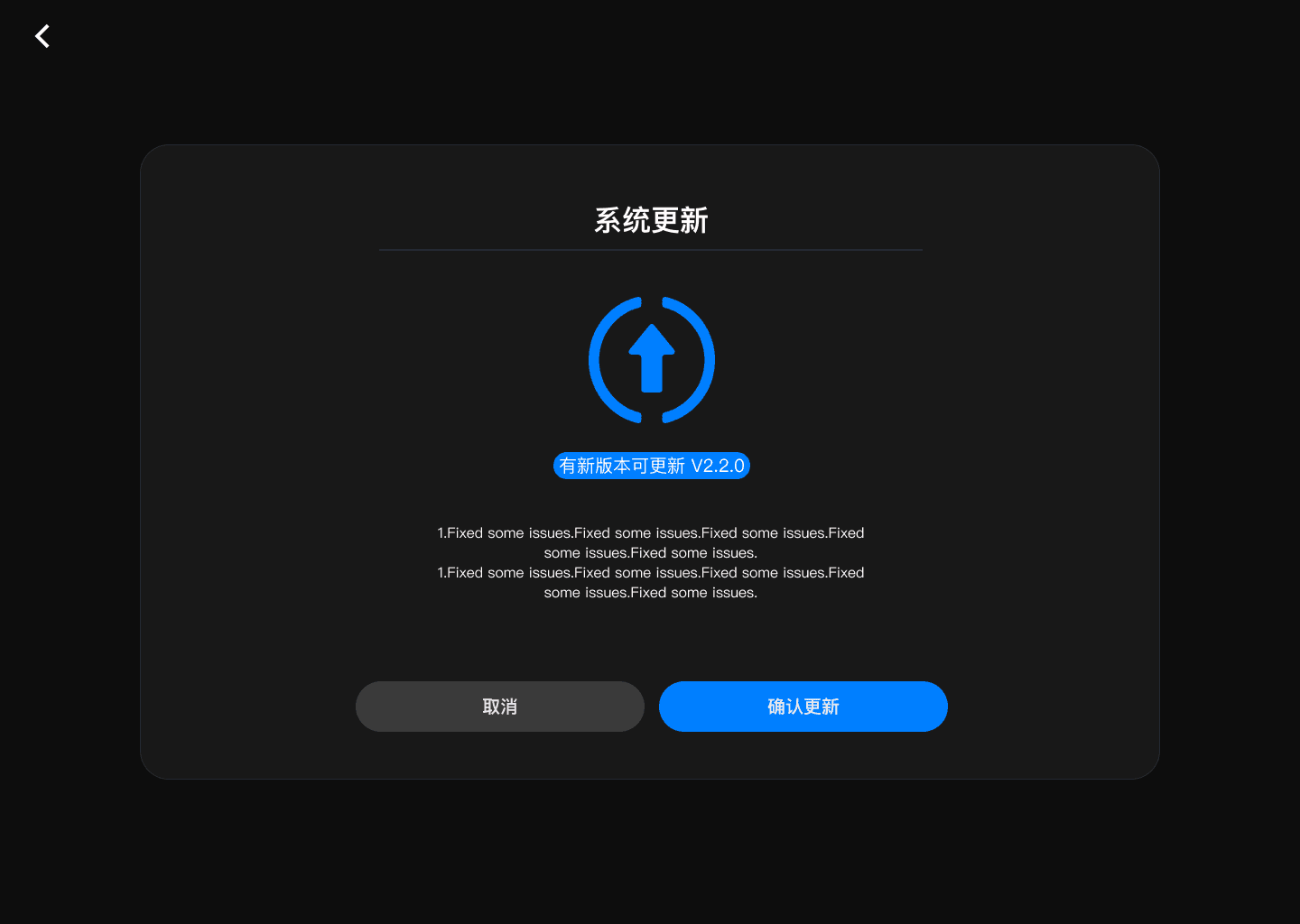
System update workflow
- Open "System update" from the personal center pop-up.
- Review the current version, the target version, and the update description. The version numbers and English description in the interface example are placeholder information.
- Stop the simulation and calibration, and save logs and any necessary data.
- Click "Confirm update" and keep the software running and the device and network stable.
- During the update the page shows progress and clearly warns against closing the software or disconnecting the device.
- After "Update complete" appears, finish or restart as prompted, then verify the version and basic functionality.
Update prohibitions: do not force-quit, cut power, hibernate, or unplug the device during the update. If progress does not change for a long time, record the interface and logs first, then follow the delivery support process; do not trigger the update repeatedly.
Firmware update
The product provides a "Firmware update" entry. The supported devices, version compatibility, rollback method, and power-loss protection strategy are governed by the official delivery documentation. Before starting, confirm that the device battery is sufficient and the connection is stable, and stop the simulation and calibration.
Post-update verification
- You can sign in normally and open the device page.
- Devices can be detected, activated, and connected, and the SN and hand are recognized correctly.
- Existing calibration files are visible; if the version requires re-calibration, follow the release notes.
- At least one delivered model can start and respond correctly.
- The Debug save directory is writable and history files can be downloaded.
Operating procedure (SOP)
First-time use
- Check the delivered items and the operating environment, then connect and power on the gloves.
- Start the software and sign in with the issued account.
- Detect devices; activate any device that is not yet activated.
- Select at most one left-hand and one right-hand device and confirm the connection.
- Complete the 8-step gesture calibration for each hand.
- Select the target model and confirm that its algorithm package is available.
- Start the simulation and check the input source for every model.
- Perform motion verification; if something is abnormal, stop the task and enable Debug to reproduce as needed.
- After the task ends, stop the simulation, save the necessary logs, and exit safely.
Routine startup
- Connect the device and sign in.
- Check the device SN, the left/right hand, and the connection state.
- If the user, device, and wearing state are unchanged, the valid calibration can be reused; otherwise re-calibrate.
- Select a model, start the simulation, and perform a quick open-and-close verification.
Ending a task
- Exit full screen and stop all simulation tasks.
- If you are troubleshooting, export the Debug files for the corresponding period.
- Confirm that no algorithm package, system, or firmware update is running.
- Sign out and close the software, then power off or disconnect the device.