Overview & preparation
Documentation notice, product overview, prerequisites, and sign-in for the Qnbot VetraGlove Pro desktop application.
Overview & preparation
Documentation notice
This manual describes the features, interface states, and standard operating procedures of Qnbot Studio. Delivery specifics such as the system version, hardware specifications, network ports, installer names, and permission policies are governed by the official release notes, the contractual technical annex, and the version actually delivered.
| Item | Content |
|---|---|
| Product name | Qnbot VetraGlove Pro desktop application / Qnbot Studio |
| Document type | Product description and user operation manual |
| Intended audience | Device operators, algorithm and simulation engineers, testers, field support, and administrators |
| Document version | V1.0 |
| Applies to | The official Qnbot Studio release and later compatible versions |
| Interface examples | The account, device SN, version number, model names, and dates shown in the screenshots are illustrative data |
Important notice: This manual does not replace device safety specifications, developer interface documentation, or the acceptance documents of a specific delivery project. Before performing a system update, a firmware update, or a calibration data deletion, confirm that the current task has stopped and that the necessary backups exist.
Product overview
Qnbot Studio is the desktop application for Qnbot VetraGlove Pro data gloves. It handles account sign-in, device discovery and activation, left- and right-hand connection, motion calibration, model selection, live simulation display, log recording, and software resource maintenance.
Core value
- Unified glove management: identify the device name, serial number, left/right-hand attribute, and connection state.
- User motion baseline: improve motion-mapping consistency through an independent 8-step gesture calibration for each hand.
- Simulation targets: select human-hand, skeleton-hand, trackball, and various robotic-hand models, and assign an input source to each view.
- Visual verification: observe how multiple models respond to the glove motion side by side in a single interface.
- Maintenance and traceability: manage calibration files, algorithm packages, system versions, and Debug history.
Typical workflow
| Stage | Action | Success criterion |
|---|---|---|
| 1 | Sign in to the platform | The device connection page opens |
| 2 | Detect/activate devices | The target left- or right-hand device is selectable |
| 3 | Confirm connection | The selected device enters the connected state |
| 4 | Gesture calibration | All 8 steps are completed |
| 5 | Select a model | At least one simulation model is selected |
| 6 | Start simulation | The model view responds to the input source in real time |
| 7 | Record/maintain | Logs are traceable and the application exits safely after the task ends |
Terminology
| Term | Description |
|---|---|
| Desktop application | The computer software that runs Qnbot Studio. |
| Data side / input source | The range of glove data driving a model; options include both hands, left hand, and right hand. |
| Calibration | Mapping the sensor data of a specific user and a specific left- or right-hand device onto a standard gesture baseline. |
| Algorithm package | The computational resource package provided for a specific robotic hand or mapping target. |
| Debug recording | Diagnostic data used to troubleshoot serial, glove, calibration, retargeting, output, and buffer issues. |
Before you begin
Delivery checklist
- Qnbot VetraGlove Pro data gloves, receiver/cable, and the accompanying power supply or charging accessories.
- The Qnbot Studio installer and the model algorithm packages required by the project.
- An account issued by Qnbot; for account issues, follow the login page instructions or contact info@qnbot.com.
- If the project includes custom robotic models, a developer interface, or offline update packages, confirm the corresponding delivery files as well.
Environment and connection checks
- Install the delivered version on a supported computer. Operating system, GPU, driver, and disk requirements are governed by the release notes for that version.
- Connect the glove receiver or USB cable, turn on the gloves, and confirm that the battery level is sufficient.
- Close other glove applications, debugging tools, and older desktop applications that may occupy the same device or serial port.
- Confirm that the network is available. Sign-in, device activation, algorithm package downloads, or system updates may require access to the delivery environment.
- Before first use, reserve enough space for calibration so that the wrists and fingers can complete the illustrated poses naturally.
Recommended order: sign in → detect devices → activate inactive devices → select the left/right hand → confirm connection → complete calibration → select a model → start simulation.
Safety & data
- Do not unplug the gloves or receiver, or close the software, during simulation or an update.
- Re-calibration overwrites the previous record for the same device/gesture; after deleting a calibration you may need to repeat the entire workflow.
- Debug Raw recordings can grow quickly and contain raw runtime data; store and transfer them according to the project's data management requirements.
- Wearing the device must not cause pressure, pain, or restricted movement; stop immediately if discomfort occurs.
Sign-in and account
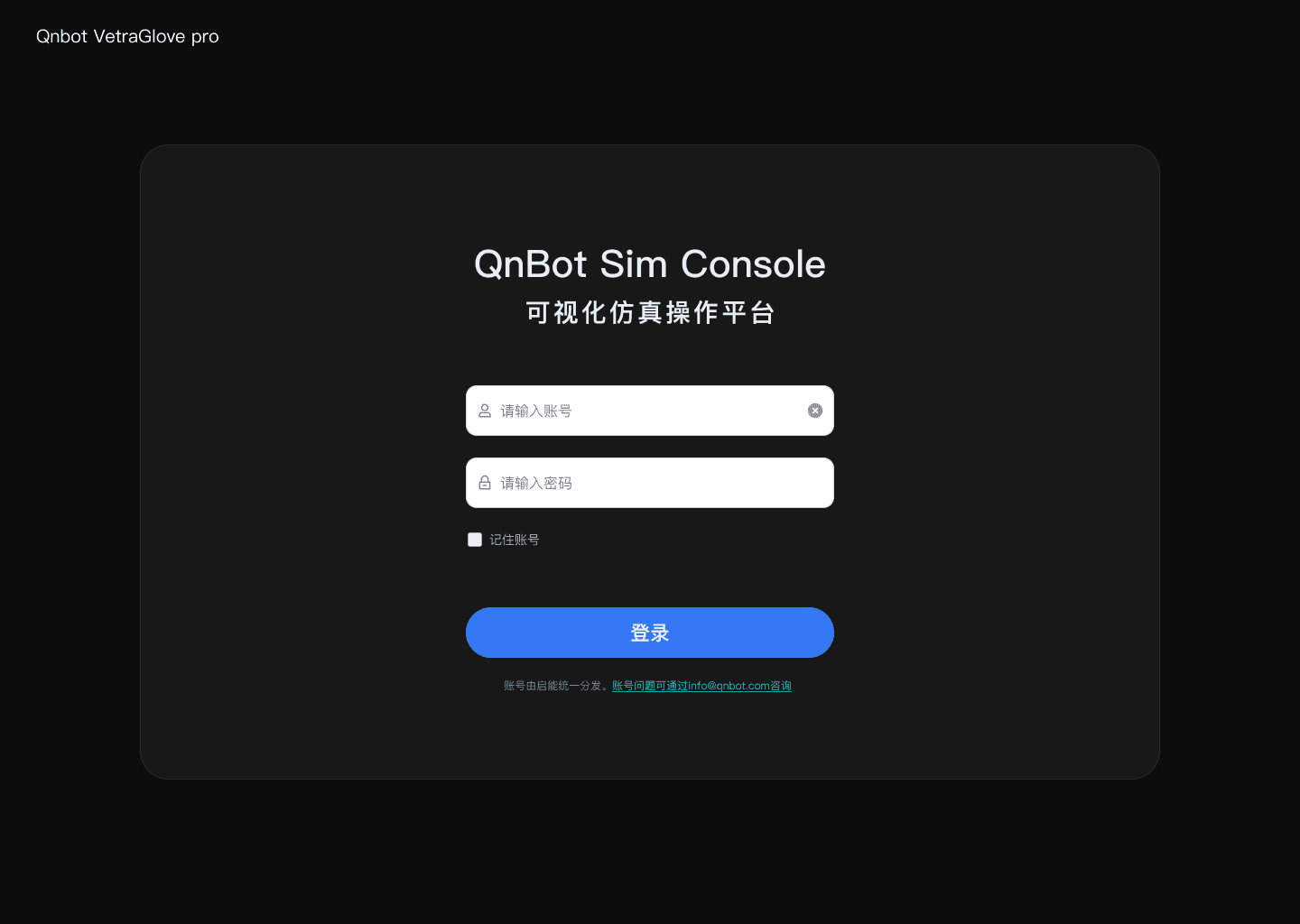
Sign-in steps
- Start Qnbot Studio and open the sign-in page.
- Enter the account and password that were issued to you.
- On a trusted dedicated computer you may select "Remember account"; this is not recommended on shared computers.
- Click "Sign in". After successful verification you enter the device connection workflow.
Sign-in failure: first check the account spelling, letter case, network connection, and system time. If sign-in keeps failing, do not guess passwords repeatedly; contact the account administrator or follow the on-screen instructions to reach technical support.